DOWNLOAD STEP BY STEP INSTRUCTIONS HERE!
How to Pay Invoices on Juice Payments Portal - Register, Make a Payment, Set Up AutoPay
You can view and download copies of invoices, pay open invoices online using ACH or CC, and set up auto pay all on the Juice Payments portal https://payments.ceojuice.com
To have access to all these options you will need to set up a login. The email address must be the same one you have on file with Standley Systems for the point of contact. If you have questions, please reach out to the AR Team at Standley’s for assistance.
Go to https://payments.ceojuice.com/register
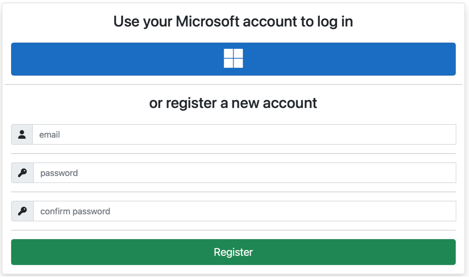
Enter your email address and assign a password, use the email address that you currently receive invoices to, then select Register.
A validation email will be sent from alerts@ceojuice.com, to the email address you registered with, open that email (check junk folder if it’s not in your inbox).

Click on the link in the email to confirm
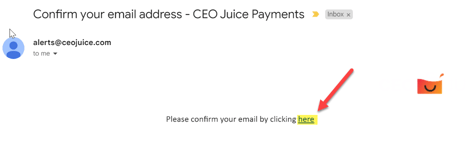
*If you didn’t receive your verification email you can choose resend email confirmation. After you have registered, if you have forgotten your password, you can choose Forgot your password.

You can now login using those credentials at https://payments.ceojuice.com/Identity/Account/Login
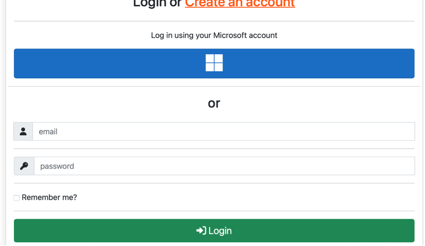
Note that the payment site requires a user's password be changed every 12 months. Additionally, the site will automatically log users out after one hour of idle time.
How to View Invoices
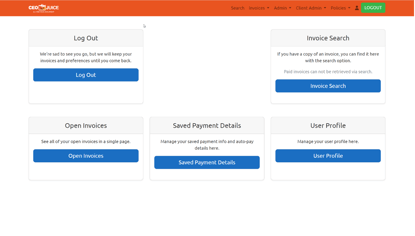
Once logged in your default homepage will be the below, where you can view a single invoice under invoice search, see all open invoices, save payment details and manage your user profile.
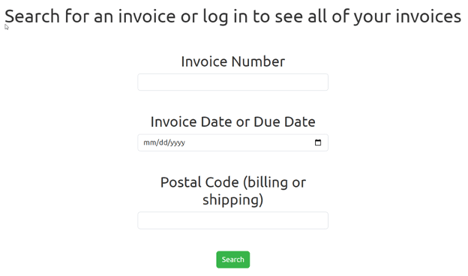
Invoice Search, opens up a search page to view single invoices by entering the invoice number, invoice due date and postal code (you do not have to be logged in to view this page)
Open Invoices, allows you to see all open invoices. Hover over the invoice number to view the entire invoices
List of multiple invoices

If you get a message saying Don’t see the invoice you're looking for? It’s possible there are no open invoices, or you have registered with an email address that is not originally associated with that invoice.

How to Pay Invoices
Under Open Invoices, display all your companies’ open invoices

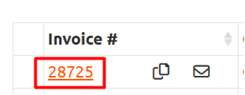
To make a payment for one invoice, in the Invoice # column click on the red linked invoice# to open it up.
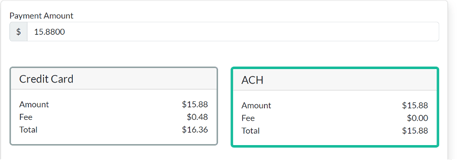
Displays the invoice details, download icon to obtain copy of invoice, and your two payment options
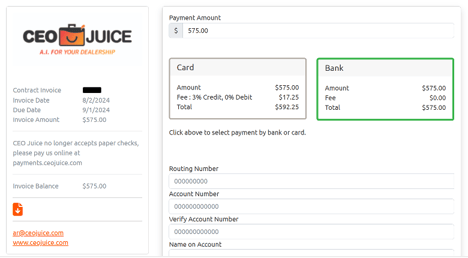
Select your payment option, ACH or Credit Card, enter payment details, click Pay at the bottom to process payment. Note that you cannot overpay invoices, but you can short pay them.
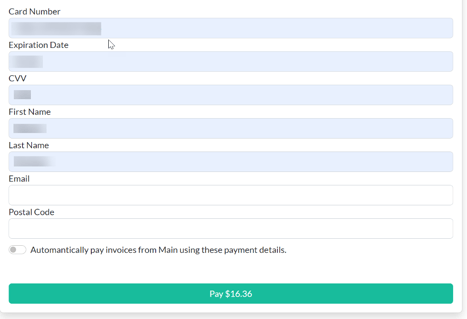
A payment confirmation number will pop up, and you will also be emailed a payment confirmation.

Paying multiple invoices with the one payment
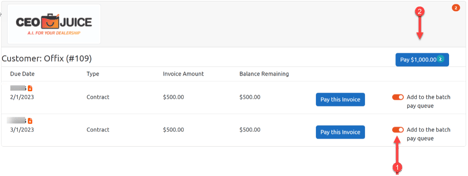
On the Invoice drop down tab choose Open Invoices. To pay more than one invoice at the same time choose Add to the batch pay queue for each invoice you want to pay, then choose payment amount above to open the payment screen.
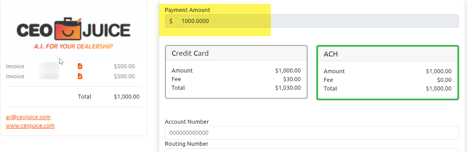
The invoices you choose to pay are listed on the left and the total amount at the top, enter payment information below to complete.
Note that you cannot short pay the total of the invoices when batch paying, you must pay the entire amount. This is because the system does not know which invoice you intend to short pay so it cannot be done.
Payment with Paymerang
If you use Paymerang to process your AP:
- Tell us to add payments@paymerang.com as a CC on the invoices we send. This way it can go to them automatically and reduce you needing to send to them or paymerang requesting from CEO Juice.
- You will pay Juice with a debit card to avoid fees.
Schedule AutoPay
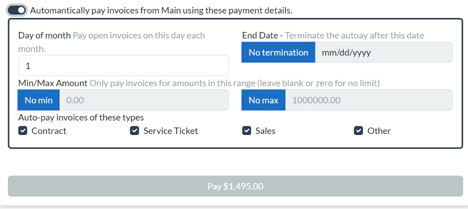
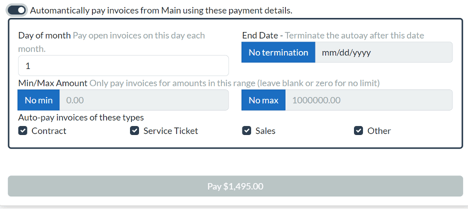
To set up autopay, click Automatically pay invoices at the bottom of the screen. Select day of month you want the invoice to auto pay, end date, option to set a min. or max $ amount, and assign what type of invoice/s can be included in the Autopay.
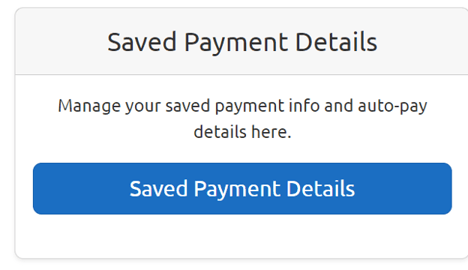
If there are no open invoices you can go directly to Save Payment Details from the landing page
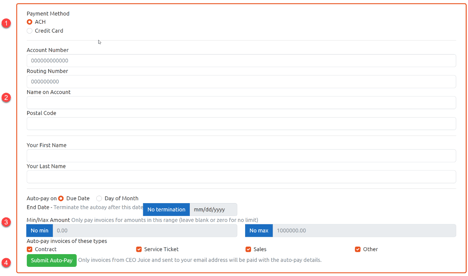
1. Choose Payment Method
2. Enter Payment Details
3. Choose when to auto pay on due date of a specific day of the month, set termination date, a min or max dollar amount and choose types of invoices applicable to auto pay
4. Choose Submit Auto Pay at the bottom to save all payment details
4. Choose Submit Auto Pay at the bottom to save all payment details
***NOTE - if you pay multiple vendors in the payment portal and you want autopay set up to pay all vendors, you must create 1 auto payment per vendor, and this MUST be set up when you are actively paying an open invoice for that dealer by completing the Automatically pay invoices section at the bottom. In doing so, this tells the auto pay which vendor should be paid using that auto payment. If you don't have an auto pay for each vendor, then the auto pays will likely fail.